Archive for the ‘Technography’ Category
Open source snobbery or why awesome is almost, but not quite enough
So I have a dilemma with what I use as my computing platform. It is a silly thing, but I suspect that others experience a similar thing, and that makes it something worth considering. It is a technical issue mixed with, or undermined by, aesthetics.
I have been a Linux user for a number of years – in various incarnations. I started out as a Red Hat user – back then I dual-booted between Windows and Red Hat, partly because getting a working internet connection was a challenge. I changed to Mandrake Linux which was impressive enough to let me change entirely. After that I tried out a large number of Linux distributions as well as variations of the BSDs. I settled on Slackware with Slackware 10.0 and enjoyed the Slackware philosophy: You can set up this system to do and be anything. I learned to rewrite the boot scripts, recompile the kernel to only support the hardware I owned but do that well. It was a great satisfaction.
However, with my two most recent laptops, both Thinkpads, I have experienced difficulties with wireless as well as power management. It seems they have the same issues with suspend, and the wireless connection is consistently dropping. The first aspect I have found an explanation for and solution to, but not the latter.
As a result, I have had to leave Slackware and look elsewhere for the most fitting system for this old X32. And this leads me to an embarrassing problem with making an appropriate choice.
I guess it comes down to a perception of hierarchy. Plainly, everyone will agree that Slackware is a distribution for Linux users who know their way around the basic Linux system, simply because if you don’t, you are not going to get an installation that is usable.
What this means is that Slackware is an endgame distribution. If one looks at the mailing lists, people have been using Slackware for ages, and people who end up with Slackware are going to stay there.
However, if you have to become a refugee from Slackware, the original Linux distribution, it is going to be an extremely ambivalent process. Because you already made it all the way.
I am using Fedora 16, the Lxde respin. And actually, this is a lovely distribution. It is lightweight, it is up to date, it will do the nice things you want without too much customisation. However, it goes through a lot of stuff before it is ready to log in, and I have no way of gettng a feel for the system. And it gives the distinct impression that one is not supposed to. A lot of stuff works automagically on this system, and it does seem a bit sensitive to tampering. I should not neglect to mention that one can get quite spoiled using a system which will do a lot automatically compared to a distribution where one has to do a lot of work before using it will be smooth and simple…
Now of course, the most marketed hobbyist distribution is Ubuntu. But that is a mainstream beginners’ distribution with a questionable approach to community and going for the mindshare. Leaving aside that Gnome3 and Unity will not run on my hardware, Ubuntu simply does not appeal to me. While Linux Mint is considerably more appealing visually and when it comes to functionality – I just downloaded their new Lxde release, and it works quite well – but I always get bugs with these Ubuntu derivatives, and somehow a couple of lines of terminal output will always peek out. If one is running an OS where this is intentional, that is not a problem, but with these, it just looks sloppy. I can also choose to see it the way that they can’t be bothered to support the older hardware I have chosen to buy. This does not make it more appealing.
Recently, I have installed Chakra and Arch – they both had some boot issues I could not track down. They would boot, but they would be probing the hardware for so long that it was pointless. I tried FreeBSD, GhostBSD and PC-BSD – they give a strange boot freeze error. The Red Hat Enterprise/CentOS/Scientific Linux family will not accept my machine because it has to go with PAE – which my CPU does not. Since this is an older machine, I am not even going to attempt to make Gentoo play on it. It would take me a week to build a usable system on this old iron. Dragora, while interesting as a Free-as-in-freedom-FSF-approved take on Slackware, simply won’t give me a good X.org implementation.
I mention these because they are respectable systems. Arch, FreeBSD and RHEL are distributions for technologists. Fedora gets a few bonus points as a member of the Red Hat family with a healthy dose of community.
Long story short, I feel a bit like a phony, and the more I use this, I feel less of the feeling that made me happy about running an open source craftsman’s OS. For the time being, I will stick with Fedora. I have Debian Live sitting on a USB stick next to me – Debian is a respectable community tool. A bit of work would be needed to really get into it. When I used Debian way back, it seemed very elaborate, but powerful.
The quest continues…
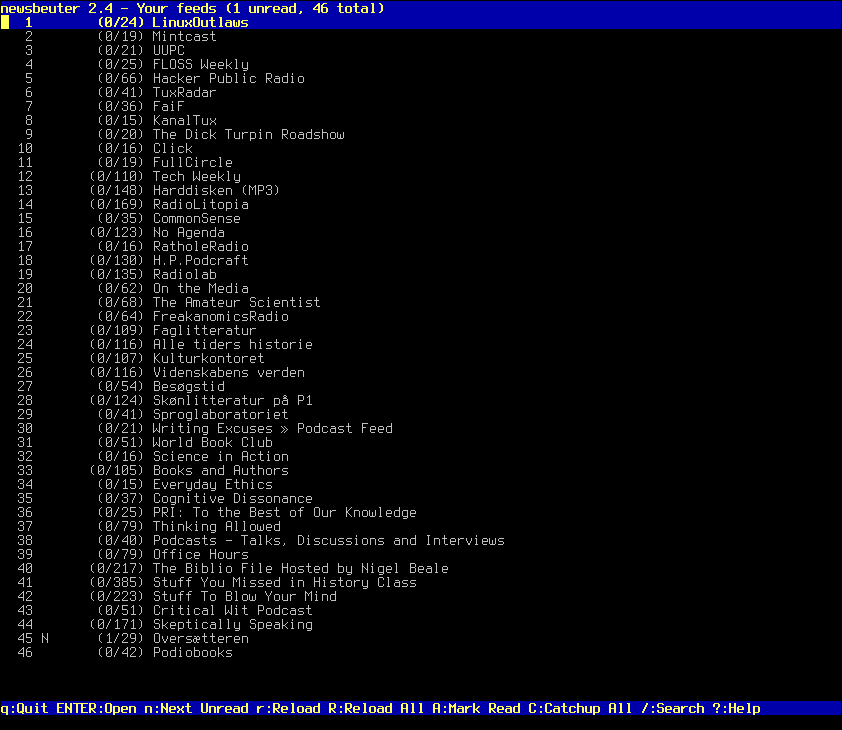
Newsbeuter – RSS reader with good podcast features
I have recently become aware of an RSS reader called Newsbeuter. It is quite different from the tools I usually use for the task, so some observations are in order.
RSS – Really Simple Syndication – is a way of getting updates about a site or service. I use RSS feeds for two distinctly different things.
First, I use the feeds for site updates, which I do for two reasons. One is for friends and people I know and respect who update their weblogs and the like, or magazines. It is good to be on top of things. The other side of that is that I receive updates to software I use, applications like Uget, for instance, which I package for Slackware.
The second major thing is podcasts & podiobooks. Ever since we got a dog and I had to walk endless miles with him – and later on with our son – I have been listening to a lot of podcasts and podiobooks. The latter is an audiobook released as a podcast – as in chapters released one by one.
Now, there is a truckload of RSS readers. The principles are simple – an RSS file is basically an XML file. But the application is done differently. For my particular purposes, most programs for the task have been a frustrating acquaintance. Until recently I was using the plugin Newsfox with Firefox, but I have discovered an even better tool: Newsbeuter.
As you see, there are two sides to using Newsbeuter as a podcatcher – there is the main Newsbeuter interface, and if you are going to download files from it, you enqueue them for download and access the Podbeuter application (which is packed with Newsbeuter). Podbeuter will work as a download manager.
To be honest, Podbeuter is really very good – as a download manager. Frankly, if I could find a way to push download links to Podbeuter, I would use it as my main download manager for all other kinds of files, too! In the background, it uses Curl for the download.
Newsbeuter is quite well-documented at the website documentation section, but primarily you will need the files config and urls, which I put in ~/.newsbeuter:
Config – here is my config file:
# Newsbeuter config file. # To be placed in ~/.newsbeuter or ~/.config/newsbeuter always-display-description true auto-reload yes browser firefox cleanup-on-quit yes download-retries 10 download-timeout 20 refresh-on-startup yes reload-time 10 download-path ~/Downloads max-downloads 2
Is is probably fairly self-explanatory, but I go into the reasons for the setup in the video.
- and of course the urls file. You can probably guess what it contains. Here is my urls file – basically just a link list.
Ken Robinson: Do Schools kill Creativity
I recently came across this TED Talk, in which Ken Robinson brings some very insightful comments on the focus of schools and the potential pitfalls of focusing on a limited and limiting view on intelligence, knowledge and learning.
Crisis mapping with Ushahidi & Open Streetmap
I found this video so immensely inspirational that it requires a posting of its own.
Phreebooks – an online accounting system
I am a terrible person.
Okay, now that is out of the way, we can get back to business. In this case, literally. Or maybe I should just take that little step back to explain?
The thing is: When I started this website, the intention was to write about literature and history – what I had written and what I was reading.
As it turns out, after I moved to New York and started working for the Danish-American Chamber of Commerce and the law firm Miller Rosenfalck (NY), my focus has sort of drifted to other things. So I have written about software – which I often do – and in this case, I take it a bit further: A piece on business software.
Now, I have actually had a soft spot for this kind of thing for a long time. As is hardly a secret, I am a Free and open source software enthusiast. And ever since I got into working with accounting, I have been interested in the problematic watershed which is crowd-sourcing expertise for specialised applications, and specifically business apps. I doubt there are many who would have the audacity/plain ignorance to claim that Inkscape, Gimp and Blender aren’t impressive. But considering the areas of CAD and accounting are different beasts, and for different reasons. The CAD apps like the Autodesk programs – AutoCAD is the most well-known, I would guess – and SolidWorks – are developed as a highly specialised, closed process, and though one would assume there is a certain overlap between technologists in construction and IT, the community has yet to produce top of the line applications. One might also wonder why these applications have yet to even be ported to Linux and BSDs, considering the fact that they are less resource-demanding than the Windows platforms; but there is simply no expectation of sale. There are applications like the 2D QCAD and the rather impressive, though non-free VariCad, but the industry standard applications are simply not represented. Now, accounting… there are a lot of people who have yet to discover why accounting is sexy. Funny how people in love with the attention to detail that programming requires seem to glaze over when met(/confronted) with accounting tasks. And so, the gap between accounting and software development seems to be an even longer stretch than in the previous example. Again, applications exist, with their own limitations. Most used is probably Gnucash, in interface somewhat similar to Quicken. However, I actually find myself impressed with another system, namely Phreebooks.
Okay, so the above may have reinforced those who think that open source developers should keep a safety distance between coding and the naming of the applications, but this is actually very good.
Phreebooks is not an installable application – in the sense that it is a web application. This is not to say that there is anything preventing you from installing a web server on your desktop machine, but one of the reasons I was looking into this was so I could find something I could host on a web server – the infamous, yet ubiquitous concept of in the cloud – because data centers simply know more about keeping systems alive than I do. Also, I appreciate that a company which is not just a local operation can access the data from anywhere (no, I am not trying to set up an opportunity to do my work from a tropical island, but yes, I appreciate the fact that this would be possible).
The system is a basic double-entry account structure. During installation, you are offered the choice of a set of default accounts, and while this is not necessarily what you need, I found it useful to get an impression of the thoughts behind the setup.
While on the subject on installation: The Installation Guide simply lists PHP5 or higher & MySQL 4 or higher as dependencies – which means you should be able to run it off pretty much any Linux hosting service you can come across. As you go through the installation, you also enter basic information about your company, the fiscal year and the currency you will be using. You will have to create the MySQL database yourself, but after that, it is simply to enter the database credentials, and the installer will pick it up. As you finish the installer, you arrive at a login screen – which will take you to the main overview. Which is not much to look at, at first.
See? Wow. Well, it is simply the beginning. I will get into the categories you see listed there. All these are pull-down menus.
The Customers section allows you to – not just create and manage customers, but this has most of the dealings with the customers in general.
Besides customers, there is a wider CRM – Customer Relationship Management – system built in – PhreeCRM – which works as an extended address book with the contact information on people relevant to your business – to some depth, actually, including also things like Twitter and Facebook IDs and space for your own notes.
This is also the section where you can create quotes for your potential customers – and invoices. Phreebooks are clearly centered around a business selling a physical object; Quotes and invoices are created based on the inventory, and so far, I have yet to determine a way to sell goods which do not work like that – as in the membership we work with at the chamber of commerce or the billable hours we manage at the law firm. I mean, obviously I can start with adding a million of each to the inventory and selling from that pool, but it seems more logical there would be a type of good which would function differently. I am exploring this at the moment. After entering the data for the quote/invoice, Phreebooks can generate a PDF file of the invoice and let you download it – or email it directly from the system. Actually, it can pretty much create a PDF file of any form you might need to keep as a file or print.
The Vendors section once again gives you a clear impression that this is a buy-and-sell company – you can request a quote on every object in your inventory list and send it to the contacts you have created, so it is quite easy to manage these requests. It is even possible to set a preferred vendor for a product, which will be default in your quote request form. This is also the section where you place a Purchase order.
Both of these have a management interface where you can see the list of requested quotes and the purchase orders.
You can probably guess what the Inventory is. An interesting feature is that while you can add products, you can also add ‘assemblies’ – products which are a package of other products. The example is a computer, which is an assembly of hard drive, case, motherboard et cetera.
Curiously: While I am not particularly scared off by setup options and freedom choice, the fields available in the Inventory are pretty much open. There is a default selection of fields in the inventory for a product – Product numbers, descriptions, relevant accounts and so forth – but all this is editable! You can set up a field for any metadata you want to associate with the particular item. This is one of those functions which you probably don’t want to touch in the first run, but which will suddenly be a lifesaver at some point, you know? That is the gift of flexibility.
As I said at the beginning of the walkthrough: If you haven’t added items to your inventory, there is nothing you can do; it is all considered a closed circuit – as a true account set should – where values are transferred from one end to the other in the system of debits and credits.
Note, by the way, the History tab in the product view. This offers an overview of how the product is selling.
The Banking section is pretty much just dealing with the cost and income generated from the previous postings. It is for paying the bills, receiving payment, doing refunds – and it allows you to see the cashflow in the cash accounts.
The General Ledger lets you register internal transfers. It is where you access and administer the chart of accounts, and there is a budget function which allows you to target the budget limitations on all accounts.
I was quite happy to see the Employees section, as I was hoping to be able to tie costs and earning into the employees. The section doesn’t exactly do that – it is mostly a question of being able to tag purchases, sales and the like to the person performing them. I did note, however, that it is possible to tie these employees to the users created with access to Phreebooks, which should make the user entering the transaction the default user getting the credit, so to speak, for the transaction.
Okay, so this was the regular user’s side of it. The rest is administration, but no less interesting for that. The first user created has full access to everything as an admin-type account. But it is actually possible when creating a new user to completely define which features this user should have access to – and whether it should be read-only access or full access. The Tools section offers some options which not everyone should have access to – such as being able to delete the company in question – but also functions like setting the designated numbering scheme of invoices, transactions, payments, quote requests et cetera. It is quite elaborate, actually. This is also the section where it is possible to back up the transaction log. The ability to trim it should make Phreebooks more snappy. The Report function makes it possible to generate reports on any type of transaction – from invoicing and cash flow to expected arrival dates of items ordered by vendors. These reports go a long way towards creating an overview of what is actually happening in the operation – on a more approachable level.
An import/export function enables you to use an existing list of customers, vendors, employees etc. – or to make a copy for the sister company with a client/product overlap. This is a clever way of solving that.
Finally, the main tool: It can back up all data from the company accounts. This is obviously very important for safety, but also because it makes it easier to upgrade. I am currently stuck with older data on a CiviCRM installation which I can’t work out how to upgrade around… If one can extract a complete dataset, nuke the installation, install an updated version and import the old data – that can make you happy.
A Setup section will let you define tax rates and currencies – it is possible to work with several currencies, and Phreebooks has the ability to update the currency rates remotely, so you will have the correct exchange rate. Default rates are USD as the primary currency and Euros as secondary. So this section is more centered around the metadata of the transactions.
The last (okay, almost the last) thing I will get into is the Company section. This sets up the default values for the accounts – as in, which account should be default in dealing with which categories, how and when should taxation be applied, what are the basic credit limits – support for several branches, if you are doing accounts for a company with several locations, and how to work with several currencies in the account set.
There is just one more thing, and that is one thing which makes it all a little bit happier to work with. You remember the blank starting page I posted about in the beginning? There is actually an option to create a view profile, so the first you see could be a financial summery, open invoices – or intracompany links or personal notes to keep track of what you need to do.
In conclusion: I believe that Phreebooks could cover the needs of the two operations I am currently working with. The functionality is certainly there, so it would mostly be a question of the user setting up a sensible set of accounts.
I would personally love to see time tracking added to the mix, but this can obviously be covered by other tools like Taskcoach or the web-based Kimai and added as a product sold by the unit. It merely seems practical to me if the employees – who can be tied into Phreebooks user logins – could do billable time tracking as well.
The stylesheets – the color aspects of the design – are not particularly pleasant to look at. While it is definitely functional, it would be nice with a bit of fairly simple graphical overhaul.
The dynamic interface sometimes tries to make some slightly odd guesses as to what you are trying to do. For instance, if you are making an invoice and enter quantity and choose a product from the drop-down product menu, the invoice comment line is automatically filled out – or not, if there is no comment associated with the product – and the cursor moves to the next line. If it is automatically done, why have a specific comment field?
Having said that, I can only conclude it is a very potent package, and I am strongly considering it as a hosted accounting solution.
I am going to do some screenshots of the interface. The link will be arriving shortly.
Claws Mail setup
Okay, so this little article maybe shouldn’t be referenced on the main page, since the only purpose of it is to explain how I like things done, and it is not… particularly impressive in the news stream.
The reason is that I hands-down completely beyond a shadow of a doubt prefer to use Claws Mail. And not a lot of people get that, since the default look of Claws Mail is… pretty terrible, to be honest (see this article from cyberciti.biz to see the default Claws layout). I find, however, that with a bit of cleanup, it is very good and even pleasant to look at; and it has some very good features to make use of. So this little piece is actually intended as a answer to people who ask me how I can use something as horrible as Claws. It is entirely my opinion, and if I am the only person in the world who has this right, I am also the only person in the world who knows that you are wrong when you say I am.
Now: Maybe I should just show you the design I am going for, to make it clear:
This is simply a series of settings to be made, none of which are particularly advanced, but make a great difference.
I should also note that part of the reason I am doing this is that I have an aging Thinkpad which will do a resolution of 1024×768. This is adequate for a lot of things, but it means that an application like Thunderbird looks terrible nowadays, because the text spacing and the huge attachment field leave so little space for the actual message. As you see, this setup allows me to use all the information in the email, and though the font is a little smaller, it still allows for comfortable reading.
None of these concepts depend on each other, so the order is of minor importance. The easiest will probably just be to go through it as the options come in the Preferences panel. In other words, start with going to Configuration > Preferences.
- Receiving – These are sensible defaults to me, but I ask it to check email every 8 minutes. Obviously you can set this as you prefer. I don’t set it to check mail on startup, because I often just want to find a detail in an email, and the interface will get quite unresponsive when fetching mail. On the other hand, it fetches mail quite quickly compared to other mail clients.
- Sending – Never get into this much, except I ask it never to send return receipts. I hate people asking me for a receipt.
- Writing – I keep the default setup.
- Templates – Ah, now there is something for people to get into. I don’t actually use these – I use a signature, which is defined elsewhere – but you will note the Information button at the bottom, which offers a lot of data that could be entered into a template. I have occasionally fiddled with the reply template, because a well-structured reply makes it pleasant, but – this is up to you. Also, as with many other things, Claws will be able to make a user-input template and include information from external applications – which make the customization options quite extensive.
- Wrapping – I check them all and have it wrap at 72 characters – for when people have mail clients which will keep you text in one very long line, if you don’t make it wrap. So, that’s a wrap.
- Spell Checking - Well… I kill it. We have too different vocabularies. Actually, now that I am in the States and almost all my email is in English, I might turn it on, but in Danish, spell checking is cr… unsatisfactory.
- Text Options – Ah, now we get into the meat of it, visually. A lot of what you can see about the email can be defined here, in “Display headers in message view”. These can be quite extensive. I like to be able to see which client the email came from, for one thing. Here, you can also change the distance between the lines. I leave it at the default two pixels, but when I was using an 800×600 machine, I reduced it. And of course, I make it render HTML as text. While it is possible with one of the Claws Mail plugins – more on those later – to have the client render HTML, that is just so wrong in general, that I like to keep it text; and it does a very good job of extracting the text from the HTML.
- Image Viewer – I let it show images, and reduce them to make them sensible to look at. I allow printing, since I would never print an email unless the point was to get everything in there. Which happens a couple of times a year, so I don’t lose a lot.
- External programs – Guess how this works. I have set the very nice medit editor as my default, but I have never actually come across anything that opened in this editor, unless I ask Claws mail to use the external editor to compose emails.
- Colors – The Color Labels tab is very nice, it allows to set the colors to use, though I usually don’t; I do like the second tab, though, discretely named “Other” – this is where you can set the URL color and, for those who do a lot of newsgroups, colors indicating the quotation level. This can be a powertool for some people.
- Summaries - This is one of the places where the action is, when it comes to clearing up the interface. You see how there are three columns in Claws’ Folder list on the left? They take up quite a lot of space – but you can do it differently. So under “Display message number next to folder name”, choose “Unread and Total messages” and under “Displayed Columns”, press the “Edit” button. In the interface which comes up, remove all but “Folders” in the “Displayed” column.
If you press OK at this stage and come back to the Claws interface, you can see how those very space-consuming fields have been replaced with a summary next to the folder name.
A bit down the page is another thing which makes quite a bit of uncluttering difference: Date Format. It is set to display month, day, year, weekday, hour and minutes. If you take the weekday out here – which you usually won’t need when you go back anyway – you get a bit of extra space. Again, the “Information” button will tell you how to get the info you want shown. I use %d/%m-%y %H:%M – which would be a European notation, Americans would go %m/%d/%y %H:%M – this will will keep it neat.
Here, you can also select which message lidt columns you would want to show. There is a ‘mark’ column and a ‘status’ column. I like to have these – to see what I have replied, forwarded etc. – but if that makes no difference to you, you can take them out. I usually put in the “Size” field as well, and for some that would be enough of an indicator to take out the “Attachment” field. - Fonts – This is the other primary place which makes a big deal. In other clients, it is problematic to get it to reduce all the font sizes in the interface. Here, Claws will let you reduce the font size for Folder & Message lists and the message font itself. One of the main problems in the message list is how the data “sneaks up” on the next column. I set “Folder & Message Lists” to Sans 8 and “Message” to a monospaced font size 9 – monospaced because people sometimes drop in ASCII in the emails, and it will look terrible if the font is not Monospaced. I usually use Liberation for that.
After doing this, you will probably want to adjust the width of the columns in the message list, but you should be able to get decent spacing. - Themes - Here is where you get a major facelift – not so much in functionality, just prettier. You can get other themes on the Themes section of Claws-mail.org – I use the one called “elementary” to get some more contemporary icons. Download the tarball, untar it, press “Install new”, navigate to the theme folder and okay the selection – the theme will be installed. As you select it from the list, press “Use this”, and it will be your default afterwards. You will want to go back to the main screen to see how great a difference this actually makes!
- Toolbars & Other sections I don’t touch. I don’t remove any of the functions from the toolbars.
- I do, hovewer, change to icon view. In the main interface, I choose View > Show or Hide > Toolbar > Icons Only. Once more, that gives a bit more space to work with. Here, you can also remove column headings – in case you feel confident that you know that the column list is a column list, the date is the date et cetera. I suspect most people would.
- There is a search field between the message list and the messages. When you need it, you need it – and it is quite powerful – but when you don’t, you don’t. It can be folded up simply by pressing the folder with the magnifying glass. More space.
- One last thing, which you may notice, or you may not at first. After a while, the vertical scrollbar in the Folder column started annoying me – it is there regardless of whether it is needed or not. I quickly discovered that the frustration is not uncommon for setup fetichists or people with small screens (or those of us who are both), and that this is possible, though in a bizarrely difficult way (okay, not for BASH monkeys, but considering how many things can be done in the Claws interface, it seems strange that they have not included this).
It seems one has to edit the settings file of Claws Mail manually. So one has to open ~/.claws-mail/clawsrc for editing and look for the line that says “folderview_vscrollbar_policy=0“. If you change the value to 1, it will automatically resize – and disappear if it is not needed.
Now, there is one thing to be aware of about this: Claws will save the default setting if you make this change while it is still running! So you will want to shut Claws down, then edit the file. When you open the application again, the scrollbar should be gone.
So there, a bunch of basic tips there to clean up Claws a bit. After this, it should look better, and all of these changes make it more usable for me.
Just one more thing I do: There is a series of plugins to extend the functionality of Claws – there could be a separate piece on those, except I use only one, and I keep wondering why this one is not included in the Claws Mail main system: The Notification plugin. This plugin will put a small letter icon in the notification area/tray/place where you quick-access stuff which runs in the background; if you right-click this icon, you can instruct it to fetch email or compose an email from an account of You can also instruct it to display a popup using the regular notification sysstem when new emails arrive.
This is what I do to make Claws do what I expect from a mail client. I could also go into the extremely powerful mail filters it has, and how you can use plugins to add GPG, RSS and spam filtering functionality. I may get into that at some point, but for now I will wrap up this article on trimming the Claws.
JabRef – a reference manager
I realize the latest posts have been heavily in the technography camp. This time, it still is – but going over to academics. JabRef is an application for managing references.
Academics have probably heard of the Endnote application, a program which will access databases of academic journals and allow you to generate your own bibliography; it will tie in to applications like Microsoft’s Word, so you can use it while writing papers.
Endnote is well known, but it is a closed application, and JabRef has the advantage of using the BibTeX format, the bibliographical subset of the LaTeX typesetting system. More on LaTeX another day – I already wrote about it and about BibTeX in the recent LyX article. For now, JabRef.
A reference management application is a logical product of geeks. Practically everyone who does programming professionally has gone to university or college, and it is only natural to use a computer to track your reference materials. When people start programming, they will want a target for their efforts, and reference management is so obvious that one can wonder why there isn’t more! But of course, it does require a certain effort to keep going – and there has to be a community around it. Projects like KBibTeX, Pybliographer, Zotero and OpenOffice.org’s built-in Bibliographic all offer functionality like this.
JabRef is a Java application, which from the beginning makes it cross-platform – and it has a very usable interface. Though there is quite a lot of scepticism towards Java – many people consider it quite clunky, and many java applications tend to be sluggish – JabRef is actually quite responsive.
There is an issue of personal importance to me, because I have a degree in Russian language, history and literature – it has to use Unicode correctly. When I used JabRef the first time, it did not, but now it does – and the feature set has expanded as well, making it an interesting tool.
The following screenshots can all be found in a Jabref gallery in the gallery section of Written and Read.

This is the main screen. I have loaded a small bibliography file featuring an article and a stack of books. As you can see, Unicode is supported, as the article is in Russian.
Curiously, BibTeX itself doesn’t actually support Unicode with LaTeX, but so many Unicode-supporting application can parse and use a BibTeX file that it is still useful to be able to make a Unicoded file.
As you see in this overview, it is possible to associate URLs and files with the bibliographies. This is quite handy when you use JabRef to manage materials relevant to the entry which you have stored locally. I usually link the books to their OpenLibrary entry, but obviously it is useful to track reviews, criticism and the like.
In the second screenshot, I have selected one of the entries, and the data of this entry are displayed below. Now, this is not all of the data – there is considerably more on this book – but it is possible to customize what is shown in this field. It is very useful to be able to see what you want to know.
Now, for the fun bit: To add a new entry. For this example, I will be using Bonvenon en nia mondo, an Esperanto book by Bent Jensenius.


Here is the sequence – when you want to add a new entry, press the green plus symbol on top, and a list of possible material types pop up. In this case it is a book – but the fields are different if you choose an article instead, so this is just to form an impression.
In the second screenshot, you can see the basic fields. Once they are filled out, you can press the magic wand on the left, and JabRef will generate a BibTeX key for you – the unique identifier for this particular entry. The last two are additional information. I was a bit surprised that there wasn’t an ISBN field, so I usually add it as a comment. Of course, it is possible to add it as a regular field, and maybe it is just to get ahead of the many types of identifiers.
As you see here, the program ties in to various databases, where you can fetch additional materials – when you have looked up a piece of documentation, you can add it as another JabRef entry.
JabRef opens an internal window to access the materials.
I would actually have expected it to use a browser window, but the way it displays it keeps the workflow consistent – and you don’t have to wait for a browser to load.

Now, musician and music teacher Jon Kulp alerted me to the fact that JabRef has some pretty powerful powerful export options.
He has used it to generate a materials list for his Beethoven class, and I very much like the layout. It is easy to use, and the Javascript links to fold out abstracts & reviews improves the overview of the page.
Getting into this export method, I have removed my Aigaion installation keeping track of the literature mentioned here; it just seems that much easier to export the data and upload. The data file is available here, and the resulting library file is linked on the right of this page – as the index.html file of library.writtenandread.net.
Okay, so I know things have been getting a bit technological around here lately. But I can assure you there is quite a bit of literary review in the works, so for those more interested in that genre, you won’t be disappointed.
Xfburn – A tool the size of the task
As a person using various Linux distributions over a very long time, one obviously has some favorites. And sometimes the favorites conflict with each other – or at least aren’t a particularly obvious or practical match.
I have been using the Slackware Linux distribution for quite a few years. Although every release of Slackware features several desktop environments and window managers, Slackware remains focused on KDE; Gnome is no longer included in Slackware, and the only way to get it is to turn to one of the independent projects maintaining a Gnome package for Slackware.
So KDE is the only one of the two larger desktop environments available, and the distribution also features external KDE components like KOffice and KTorrent. If one has a preference for KDE, there is little one would need to find outside of Slackware.
KDE has, however, for a very long time not been my favorite; Xfce is, and especially with the release of Xfce 4.6 featuring the excellent Thunar as default file manager. A pronounced weakness for GTK2 applications slowly turned the app selection in that direction – Firefox, Claws Mail, Gajim, Filezilla, Medit, Abiword and so on.
As it turned out, there was one particular application which could not easily be replaced – and that was K3B. I noticed this impressive CD/DVD-writing app early on (Mandrake 9ish, I think), and for the longest time, it was simply the best tool for the task. It was, I believe, the first project I supported financially (before I started supporting promising projects under being developed rather than well-established projects with proven results; but that is a different story). K3B extended functionality over time, and in my opinion, it has only become stronger.
Now – what this also means is that this is the application that forced me to install half of KDE even if I didn’t need it for anything else. When I would fire up K3B, there were two approaches to it: Either taking ages to do it, because it had to go looking to call a number of KDE components – or I should call those KDE parts when starting up Xfce, which means startup would take longer _every_ time. Not hugely, but – noticeably. I should add that I have an old Thinkpad which is not particular potent in any other field than battery life. A low-powered laptop with a fairly new 9-cell battery will give me about 5 hours, which is of more use to me than a potent machine. A tradeoff.
Of course, I have tried other applications for the job as well. At an early stage, I used Xfburn – which was so immature that I quickly gave up on it. Later, Gnomebaker; little use for that when I had to hunt down Gnome components to make it play along. I used Graveman, which is quite usable and intuitive, but which has some design decisions which, well… it just annoys me. Not much use as a review, I know, but a personal statement.
And so, when I recently had a recommendation – a discussion on Identi.ca on elements of Xfce – I started looking into Xfburn again, and I installed it to see if it could help me repress the thought of Graveman. I can only say that it was a very positive impression – considerably different from when I tried it the first time.
Having said that: I should note that 9 out of 10 times I use a burning application is to burn an ISO image file which Unetbootin won’t put on a USB stick. I don’t really make audio CDs anymore – I have nothing to play it on; I used to make such CDs for teaching materials, but I don’t teach anymore. Considering backups on CDs and DVDs is just so much more expensive than the alternatives.
I will occasionally burn a couple of individual files of there is something I want to send to a friend – say, family pictures they will want to keep – or if a file is so huge it will take me ages to upload it with my somewhat limited connection.
I believe many people share my approach to optical media. But sometimes having an app to do this can be handy, and I have found it in Xfburn. It is quite easy to install on Slackware, as most of the dependencies are installed by default; so there are only a couple of things to install alongside the Xfburn Slackbuild.
The interface is all business. Not a lot of penguins here. It is not possible to select what you want here like in K3B… because all features are represented. What you see here is what the application will do. So no reason to unclutter anything.
Note the shortcut to the Home folder. Usually this will be where the user will have the data Xfburn is going to work with. While there is a reference to the remaining file tree, so it can be accessed if necessary, focus is on /home.
First example, the obvious choice: Burning an image file.
You will see most of the ordinary functions you would expect – although I would like it if Xfburn could verify an MD5 checksum like K3B can. This is a very useful feature, particularly for someone with my user profile. It is filed as a feature request.
Burning, burning, burning.
Most basic information clearly presented.
Creating a new data CD is simply dragging & dropping files. It is possible to create folders as necessary. In the corner a field to enter the name the finished CD/DVD will display when inserted.
As you will know from other applications for this purpose, the bottom progress bar will indicate how much space is reserved on the CD or DVD; options are 200, 650, 700, 800, 900 MB CDs and 4.3 and 7.9 GB DVDs.
Note that there are several tabs, so one can work on several projects. I do not have the hardware to determine if it is possible to burn using several drives at the time – if you have any experience with that, please share!
It is also possible to create audio CDs in what people used to call “a regular CD player”, although I guess those are on their final stretch… you know what I am talking about. Xfburn uses Gstreamer to access the audio files. I can verify that it works with MP3, Ogg Vorbis and FLAC files – since that is all I have. I would imagine it will support whatever the Gstreamer plugins can handle.

Options in the Preferences section are limited.
It is simply basic settings for the place to cache the files during transfer along with the setup for the drive(s?) being used.
Now, there is one thing I have been thinking about… take a look at this screenshot. Does anyone but me find it slightly excessive with 3 different ways to access the same few functions? Menu, toolbar and half the front page? Though it is possible to disable the toolbar, so you will only see the buttons on the lower part of the front page.
With this comment and the request for an MD5 check: As you see, a tool for a very specific purpose, which the application fulfills. As an Xfce user, it is very nice to see a well-integrated tool.

As you see, Xfburn integrates well in Thunar, making it possible to send image files to Xfburn, and files and folders can be added to a new data CD. Both are available from a right-click context menu.
A small trick: You may note that it is not possible to use Thunar to send audio files to create a new audio CD.
Xfburn does support this, however, with a command line switch. “Xfburn -a” – an abbreviation of “xfburn –audio-composition” – followed by file and/or folder names will open an audio composition window with the relevant files.
When something like that is supported, it is a good opportunity to make use of Custom Actions in Thunar. Custom Actions is a feature where to customize the right-click context menu based on file types or folders. As an example, I have an option when right-clicking on audio files to enqueue them in the Audacious play list. As long as there is a commandline option, Thunar will help you.


As you will see in these screenshots, I create a new custom action to call “xfburn -a” on the hightlighted files. If I call the function, an Xfburn window will open up with a new audio project.
This gives you an impression of what can be done with Thunar Custom Actions – expect an article on my favorite personal tricks later.
This is a good reason to use Xfce, the same as choosing Firefox for the extensions: There a are a lot of functions which could be useful, but which are not built into the system – what is created is a framework to make it easy to extend your system with the functions you would like.
Thoughts on Linux partitioning
A short entry from the technological side.
Over time, I have had some experiences with partitioning, and there is one thing which I come across very often, but which has bitten me so many times I think it deserves dishonorable mention: The thought of recycling a /home folder among various distributions and various versions of the same distribution.
On the face of it, /home/yourname holds your files, and there is no place like ~ and all that. It does, however, merit a closer look – because /home holds all of – or at least most of – your settings.
What this means is that if you have an Ubuntu installation with a separate /home partition and then install, say, Fedora, those two will share the home folder, and if you are like me, you will use the same username to identify yourself. In other words, you will be using the same /home/yourname.
This means it will try to use your settings files when it comes up. All these files may be hidden, but they will influence the setup of the desktop you are logging into – any program which is also in you new distribution will take settings from the old one. This can be color schemes, to take a more harmless example (though I can not without pain imagine using Fedora, Mint or Opensuse with purple hues) – but you may come across a versioning conflict that will break your existing config files.
Though these things rarely happen, the potential for trouble is considerable.
And so, I have concluded that the best for me is to keep an individual storage partition. I put it on /mnt/storage, but that is of less consequence. In /mnt/storage, I have my library of texts, documentation and stuff I have written myself; I have my collection of audio: Audiobooks, podcasts and music; I have my collection of scripts; I have my collection of videos; I have my “Installers” folder with a collection of downloaded ISO images I need more than once, tarballs of certain drivers I need and the like. I have my collection of images, which is everything from screenshots over webcomics to my son being born. And there is my “Workshop” folder containing my half-baked scripts, my .po folders from the software projects I maintain translations for.
Once I install a new distribution, I create symlinks to my stored files in /home. And so, /home/morten/video to /mnt/storage/video will point to /mnt/storage/video, /home/morten/podcasts/ will point to /mnt/storage/audio/podcasts et cetera.
What this means is that my /home/morten will be unique for this distribution installation, but the files I need will be accessible regardless of what I have chosen to boot – the settings in the /home folders will not influence each other. If you have some more sensitive files, say, your script folder, you can make it read-only, so it is always available, but you can’t break it without concentrated effort; but that is a general consideration, not influenced by your partitioning.
There are, of course, several approaches to this issue, but I find this solution to be simple and functional.
Surely You’re Joking, Mr. Feynman
A mix of genres today, though that may be what you have come to expect around here; part literature, part science.
Lately, I have been reading Surely You’re Joking, Mr. Feynman, the autobiography of the physicist Richard P. Feynman – in the sense Feynman told the stories, and Ralph Leighton wrote them down. This book has been on our shelves for quite some time, as I gave it as a Christmas present to my wife a couple of years ago along with a biography on Albert Einstein (did I mention that our son recognizes Albert Einstein?). The dog ate the Einstein biography (true story), but spared Mr. Feynman.
There are a couple of themes that keep recurring. Curiosity is one – Feynman’s desire to explore the world is this incredible hunger that puts him in the most peculiar situations. I resist the temptation to list all of the examples, because part of what makes the book interesting is the way you can never really tell where it goes next. I will say this, though: He seems to apply a scientific method to the world around him. The very first chapter tells about young Richard falling in love with fixing radios. His enthusiasm is apparent from the first paragraph of the book:
When I was about eleven or twelve I set up a lab in my house. It consisted of an old wooden packing box that I put shelves in.
He goes on to telling about how he would set up a lamp bank in his laboratory, playing with bulbs in serial or parallel connection and making switch systems.
Also, from the start, Feynman is quite a trickster and almost gets into trouble. His electrical experiments set off a small fire in the house, which he manages to hide from the parents. He discovers that his radio will pick up a radio channel with a show all the children listen to – an hour before they usually listen to it! And he will join them afterwards to make clever comments about what next to expect in the plot… and the first thing he describes from his time at MIT is stealing a door and hiding it; later, he finds out how to open the safes at Los Alamos to demonstrate their inadequate security – an amusing parallel to how Steven Levy describes in his classic book Hackers the later practice at MIT of picking the locks because everyone should have access to information, and a computer shouldn’t stand around without being used – and of course, the similarity is that it is not just a practical consideration, but also a brain game. A challenge that, once encountered, can only be met and resolved accordingly.
He describes a difficult youth. Even when he gets older, he has his problems with women. At MIT, he puts great thought into the right way to just walk past the girls. And, of course, the physical awkwardness that seems associated with the natural sciences – often discarded as prejudice, and yet repeatedly confirmed – is summed up in a side comment on sports:
I was never any good in sports. I was always terrified if a tennis ball would come over the fence and land near me, because I never could get it across the fence-it usually went about a radian off of where it was supposed to go.
This actually makes for an interesting contrast and again, a good reason for reading this book: In most of what Feynman comments on in the book, he is confident bordering on (and sometimes beyond) cocky, but he is also extremely honest about his weaknesses and fears as a human being, which makes the book a very personal and charming read. As he describes how he conquers his challenges, he mixes some rare insights with a human story. He does get married, but his first wife dies from tuberculosis in 1945 while he is working at Los Alamos, and this chapter is very personal. He marries a second time in 1952.
This honesty is a recurring feature as well. He descibes being in Brazil to teach, and he encounters an interesting phenomenon: That the students on the face of it seem to know the curriculum completely, that the questions they are asked are answered in full – but when he starts asking them questions with scenarios, it turns out that they do not know the answers; and he discovers that they memorise everything without actually understanding it! And that is how they perceive learning. Of course, he tries to promote the inquisitive mind, genuine curiosity and debate about the topics, but it turns out that each student is so deeply trained in never admitting doubts, confusion or mistakes that the idea of a study group is discarded beforehand.
Feynman spends a lot of time on this, and he never fails to stress that it is his curiosity, his need to understand, that has brought him far and will bring him further – and being honest about what he doesn’t understand, and what is not yet understood in general, is a necessary part of that.
For the same reasons, he comes across as rather harsh when he is asked to be on the board reviewing schoolbooks. Not only does it very soon become clear that the other reviewers are barely skimming the books in question before giving their recommendation, it is also clear that the books are of an appalling quality and completely unfit for, you guessed it: Stimulating curiosity and creativity. He also rages against the politics of it: When one of the publishers offering the books at an earlier date, another does the same – and at a reduced rate! So, Feynman concludes, it seems that when you push the timeframe, the books become cheaper as well!
There is one interesting point where it is clear that Feynman is a product of his time. I have already mentioned Los Alamos, so perhaps you know – he participated in research for the army during the 2nd World War and cold war that followed – and actively encouraged his fellow scientists to do the same. As a result, he takes part in the research in nuclear weapons as a patriotic duty and is present at the nuclear detonation of the Manhattan project. While his personal opinion seems to go a bit back and forth on this, this biography contributes an interesting personal portrait of people like Oppenheimer who were involved in this research, and whom history has not only been kind to. There is also an interesting description of the clash of cultures between the army way and the academic approach.
Feynman’s curiosity is expressed in a different form – namely, his eagerness to examine other areas. In Princeton, he visits classes of other fields like biology and philosophy. In a series of discussions with a friend, an artist, he concludes that their lack of agreement is based on the fact that the artist does not know science, and he himself does not know art. So he sets out to learn drawing – and learns it with the help of his friend, and also painting – and suddenly he has a small business on the side selling paintings!
His interest in music also comes across – he learns to play drums quite well during his time in Brazil and gets to play with local bands; this also earns him some interesting friendships over time after he comes back to the States. In the time before he goes to Brazil, he learns Portugese, and spending some time in Japan, he learns some Japanese. Confronted with the riddle of Mayan hieroglyphs, he goes into deciphering an archeological find, a Mayan calendar.
I could say that Richard Feynman eventually ends up winning the Nobel Prize, but that would not be fair. While he certainly finds the discoveries that earn him the prize important and fascinating, the prize is of less interest to him and does cause him to get more attention than he wants and, one might say, the wrong kind of attention: The attention you get because you are a Nobel Prize laureate, not because you are an interesting or otherwise relevant person. As you will see, this rubbed against his view of the world.
This book was first published in 1985, a few years before his death in February 1988, and in the time after his death, what I find about him is mostly his literature, the materials he has written for teaching and, indeed, popularizing physics, and he is said to have been especially proud of being awarded the Oersted Medal for notable contributions to the teaching of physics.
The book is partly educational for the scientific content, the historical description of how certain discoveries came about, interesting portraits of great scientists – and partly a human story of an occasionally very shy and occasionally very extroverted, but always inquisitive person.
Bibliographic references are available from the Open Library page on this book.